
Stay informed with the Stream page, providing updates on the latest communications, activities, and client interactions. Effortlessly search for past activities to maintain alignment with clients and seamlessly continue your work.
In this guide, you can:
- View the stream
- View activities
- View Messages
- View Events
- Edit Billable Status
- Edit Logged Time
- Relocate an Activity
Viewing the Stream
-
Tap on the Stream tab on the bottom bar
-
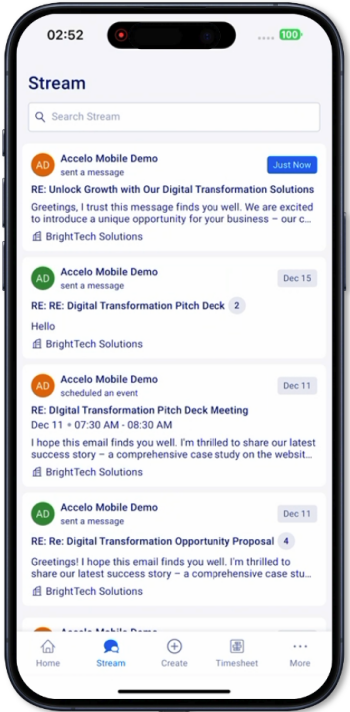
The stream page shows the activities according to the activity visibility settings sorted by the date the activity was created.
-
Activities include:
-
Messages
-
Events
-
Sign-offs
-
Call logs
-
Work logs
-
-
Search for a specific activity by entering the activity title, content, company, or activity creator.
-
Pull down the page to refresh the list of latest activities
-
Scroll to the last activity to load the next batch of activities.
Not yet supported
-
Filter activities by type, date, assignee, and against object.
Viewing Activities
-
Tap on activity to see the activity thread
-
On the thread screen, users can see the parent activity title and different activity types shown from oldest to latest.
-
Messages
-
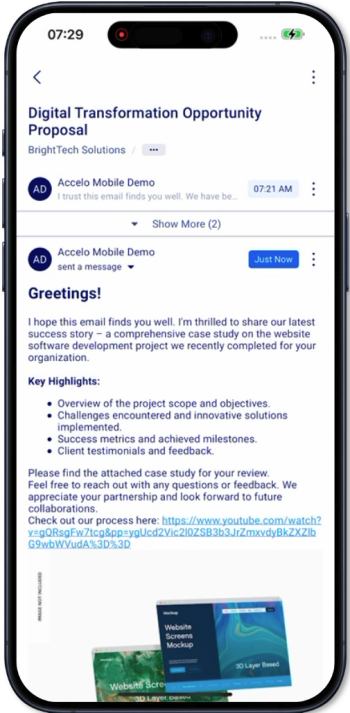
On a Message activity you can see a thread of all messages related to the parent message.
-
Message details include:
-
Sender
-
Visibility setting
-
Metadata
-
Date and time sent
-
Billable hours and minutes
-
From email
-
To emails
-
Cc emails
-
Bcc emails
-
-
Message description
-
Message in-line images
-
Message attachments
-
-
Events
-
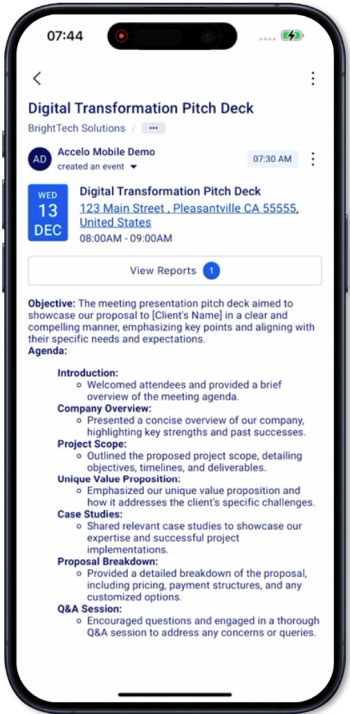
On an Event activity, you can see the event details, reports, and any message related to the parent event.
-
Event details include:
-
Event date and month
-
Event Title
-
Event Location
-
Event start and end time
-
Reports
-
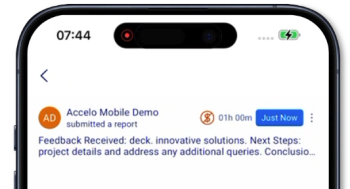
To view submitted reports, tap on the Reports button on the Event Activity.
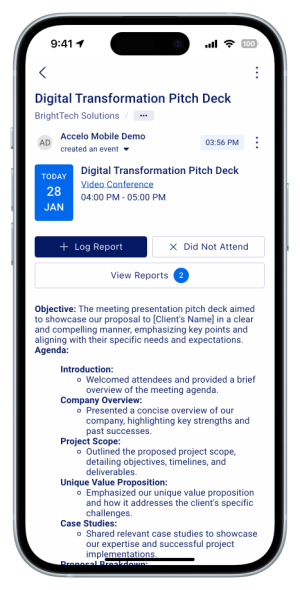
- This will bring up the list of submitted reports against the event.
-
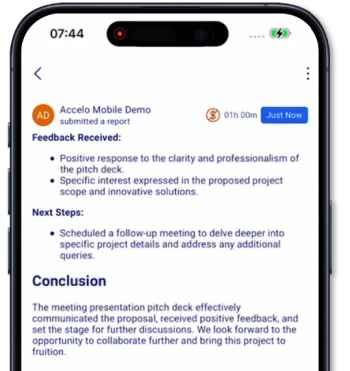
Tapping a report will bring up the report screen
-
-
Event description
-
-
On each activity you can see the activity details including the:
-
Class
-
Logged time
-
Tags
-
Priority
-
Visibility
-
-
Edit Billable Status
- Navigate to the Stream tab.
- Tap on an activity to open the activity thread.
- Tap the kebab menu (⋮) in the top right corner.
- Tap View Message/Note Details.
- Locate the billable status on the Message Details screen.
- Tap the billable toggle to switch between billable and non-billable.
- The update will be applied immediately.
- A success or error message will be displayed to confirm the outcome.
-
Note: If you do not have permission or the activity is locked, the billable status will be shown as read-only.
Edit Logged Time
- Navigate to the Stream tab.
- Tap on an activity to open the activity thread.
- Tap the kebab menu (⋮) in the top right corner
- Tap View Message/Note Details.
- Locate the logged time on the Message Details screen.
- Tap the logged time value.
- This will open the time editing modal.
- Update the logged hours and minutes as required.
- Tap Save to apply the changes.
- A success or error message will be displayed to confirm the outcome.
Note: Editing is only available where permissions allow and the activity is not locked (e.g. approved or invoiced).
Relocate an Activity
- Navigate to the Stream tab.
- Tap on an activity to open the activity thread.
- Tap the kebab menu (⋮) in the top right corner.
- Tap View Against Object Details.
- This will display the current object the activity is logged against.
- Tap Relocate.
- This will open the Against Object selection screen.
- Search for and select the new object.
- Confirm the selection.
- A success or error message will be displayed to confirm the outcome.
Note: Relocation is only available where permissions allow and the activity is not restricted by its current state.
Not supported:
-
Editing the activity settings such as the class, tags, and visibility
- Submitting a report