
The HubSpot Deals integration is available to deployments on the Professional, Business and Premium tiers. To get started, reach out to your Accelo account manager to request it be enabled.
Connect Accelo to HubSpot and keep your sales pipeline in sync between both platforms.
Using this guide, you can:
- Connect your HubSpot account to Accelo
- Map HubSpot properties to Accelo Fields
- Map HubSpot stages to Accelo statuses
Connecting your HubSpot account to Accelo
Important things to note before integrating your accounts:
- The HubSpot Deals integration must be enabled for your deployment before it can be connected. To enable the integration, reach out to your Accelo account manager.
- To set up the integration, you must be an Administrator user in both Accelo and HubSpot
- HubSpots does not support API access for the Free Marketing product, so we are unable to connect to those accounts
To connect your HubSpot account:
-
Navigate to your Integrations page by clicking your User Profile Icon in your Navigation Bar and selecting Integrations.

-
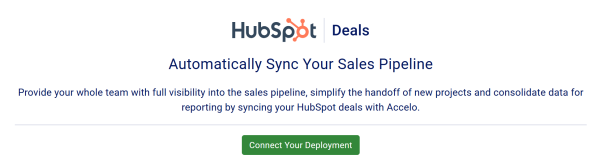
Locate the HubSpot Deals tab and click the Connect your Deployment button.
- On the subsequent page, click the Connect button.
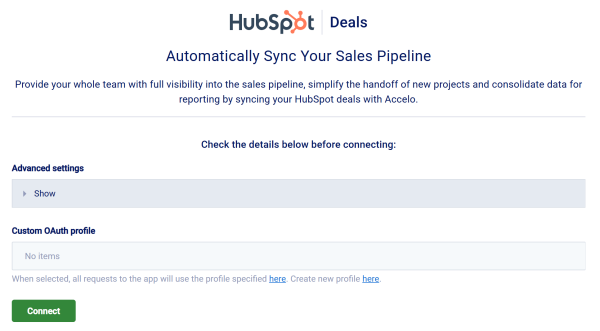
By default, Accelo requests only the basic API scopes required to sync your deals. Using the advanced settings you can further customize those scopes to fit your security requirements. -
A new window will appear, prompting you to log in to your HubSpot account and authorize the connection.
If you manage more than one HubSpot domain, select the the domain you'd like to connect.
Click Grant access to complete the connection. You'll then be returned to the Accelo integrations page.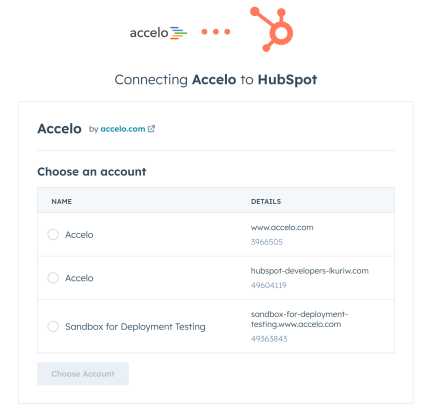
Map HubSpot Properties to Accelo Fields
The Field Mapping screen should be the first step in setting up your integration. Don't worry, you can always return to this page later on to update your mappings.
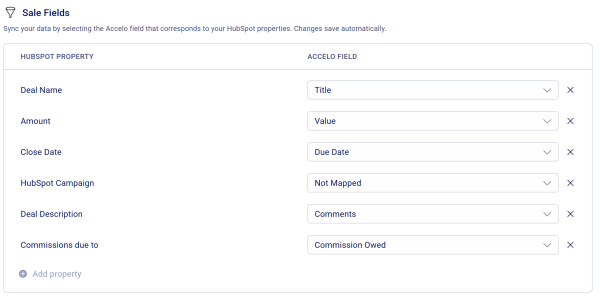
The mapping screen will display a list of the HubSpot Deal properties you've selected, and a list of Accelo fields they can be mapped to. To map a new field, click the Add Property button, select the HubSpot property you'd like to sync, and then select the Accelo field it should sync with. When selecting the Accelo counterpart, a field of the same data type should be selected. For example, a date field in HubSpot should be mapped to a date field in Accelo. Fields mapped to incompatible data types will prevent deals from being synced
Note: There are a few fields that do not appear in this list because they are always synced by the integration. They are:
- Deal Stage
- Deal Pipeline
- Deal Type
- Deal Owner
Create an Accelo Custom Profile Field for Mapping
If the field you want to map doesn't exist in Accelo yet, simply create it as a custom profile field first. For more information on creating and managing these fields, check out our guide.
Keep in mind:
-
You do not need to have every field in HubSpot mapped to Accelo. Only map the fields you think your Accelo users will find useful when monitoring the sales pipeline.
-
You do not need to have all the fields created in Accelo yet when you use this screen. You can come back to this screen at any time if you change your mind or add in additional custom fields.
How to create & modify Custom Profile Fields in Accelo
Map HubSpot Stages to Accelo Statuses
In Accelo, statuses are the main way of understanding where a sale currently sits in the pipeline. In addition, statuses drive the functionality around Status Progressions and Triggers, similar to HubSpot Workflows.
The Status Mapping screen contains a list of HubSpot Deal stages and Accelo sale statuses, and is split into two sections for HubSpot to Accelo updates and Accelo to HubSpot updates. These will allow you to configure the status that should be used when deals come into Accelo, and sales are sent back to HubSpot.
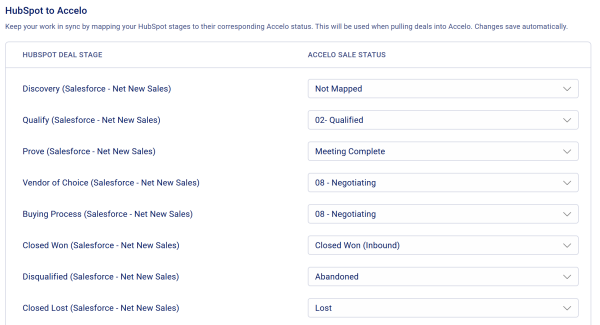
For new users, we recommend a one-to-one mapping of stages to statuses to ensure that the pipeline appears the same in both systems. For more information on customizing your statuses in accelo, check out our guide.
For advanced users, multiple HubSpot stages can be mapped to a single Accelo status. This can be helpful in simplifying your delivery team's view of the pipeline by consolidating the fine details of the funnel. Similarly, multiple Accelo statuses can be mapped back to a single HubSpot stage since similarly, a good marketer may just need to know that someone is a client, and not necessarily all the details an account manager obsesses over.