
Timesheet Approvals provide an end-to-end workflow for submitting, reviewing, and approving weekly timesheets before time flows into invoicing. Unlike the object approval tool where users approve work by work object, with Timesheet Approvals reviewers can assess a complete weekly timesheet, understand how time has been logged, and approve or decline the timesheet as a whole.
This feature introduces new configuration options, a dedicated Timesheet Approvals page, activity locking based on approval state, and alignment with invoicing to ensure—if required—only approved time can be invoiced.
Timesheet Approvals are particularly useful for project managers, account managers, and reviewers who need confidence that submitted time is accurate, final, and ready for billing.
Important to note, if using Timesheet Approvals all approvals will be via The Timesheet Approvals page, and the object approval tools for each work object can only be used to edit activities and can not be used for approvals.
Using this guide, you can:
-
Understand changes to the Weekly Timesheet and how users submit and re-submit timesheets
-
Understand the Timesheet Approvals page and how to review, approve, or decline submitted timesheets
Enable Timesheet Approvals and configure the required settings and permissions
Timesheet Approvals are controlled at the deployment level and must be enabled before users can submit or review weekly timesheets. Once enabled, additional permissions determine who can view, submit, review, and approve timesheets.
Enable Timesheet Approvals
-
Navigate to Settings → Activities & Emails → Settings.
-
Locate the Use Weekly Timesheet Approvals setting.
-
Toggle the setting to Yes and save your changes.
-
An additional setting Send Timesheet Email Notifications can also be toggled on and off, this controls if a submitted, approved and declinded emails are sent to the relevent staff memebers.
Once enabled, the Timesheet Approvals page will become available from the top navigation under Time → Timesheets. 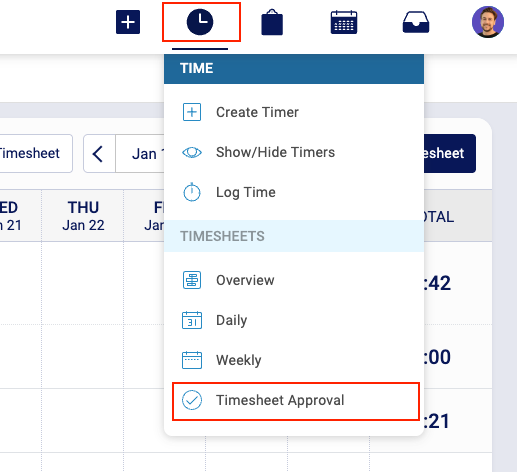
Note: It can take up to 10 minutes for the new Timesheet Approvals page to appear in the top navigation after enabling the setting.
Important Behavior After Enabling
When Timesheet Approvals are enabled, the following behavior applies:
- A timesheet is created for each user for the current week.
-
Activities that were previously approved using the Object Approval tool will now require timesheet submission and approval.
- The "Unapproved Time" custom list filter does not consider work approved via the new Timesheet Approvals workflow.
-
New weekly timesheets will be created automatically going forward.
This ensures all time is consistently governed by the Timesheet Approvals workflow.
Turning off Timesheet Approvals
If Timesheet Approvals is disabled after being enabled, the following system behaviour will occur:
-
The Timesheet Approvals page will no longer be available
- If Timesheet Approvals is turned off while a timesheet contains individually declined activities, these may still be visually indicated in the Weekly Timesheet. These indicators do not impact time tracking, approvals, or invoicing. To avoid confusion, it is recommended to review any affected timesheets and either approve or decline the full timesheet before turning off the feature.
- Any activities previously approved will need to be approved via the object approval tool - however any invoiced activities will continue to be invoiced and be located in the invoiced section of the object approval tool
-
The Weekly Timesheet will revert to its standard view:
-
The Past column will be removed
-
Status banners will no longer display
- The Submit Timesheet option will be removed
-
- Activities in the Past Column - Any activities located in the Past column at the time of turning off Timesheet Approvals will be moved back to the day on which the activity was originally "logged for".
If Timesheet Approvals is later re-enabled:- These activities will return to the Past column for a Pending Timesheet
Configure Permissions
Administrators automatically have full access to Timesheet Approvals.
For other user licence types, permissions can be reviewed and updated as follows:
-
Navigate to Users & Groups → Permissions.
-
Open the Timesheet Approvals permission set.
-
Review and update permissions as required for your organisation.
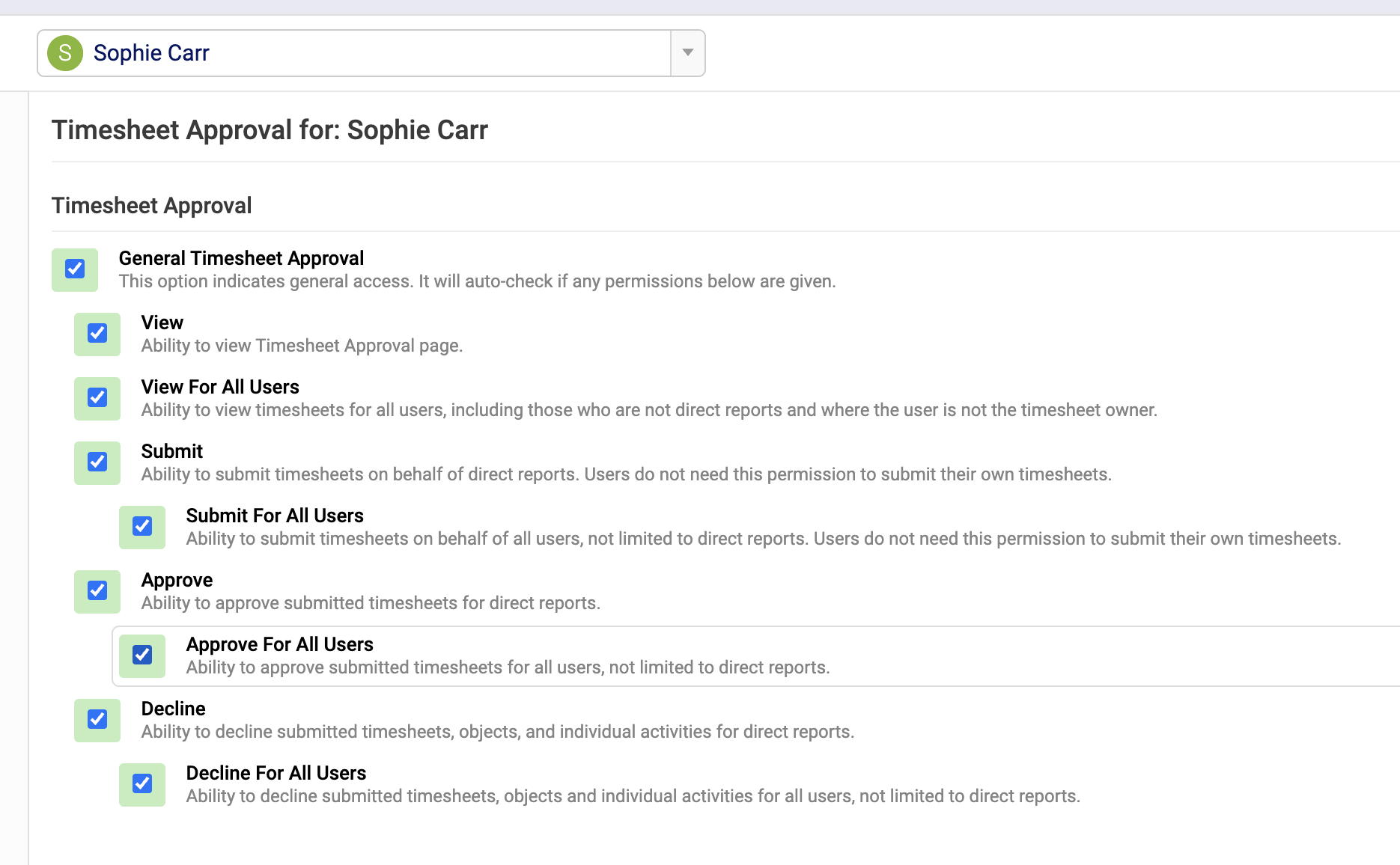
Permissions control actions such as viewing timesheets, submitting timesheets, and reviewing or approving submitted time.
For detailed explanations of each permission and how they interact, refer to the following guide:
https://help.accelo.com/guides/settings-and-configuration-guide/users-groups-and-access-control/access-control/user-group-and-individual-user-permission-options/
Understand changes to the Weekly Timesheet and how users submit and re-submit timesheets
When Timesheet Approvals are enabled, the Weekly Timesheet becomes the primary place for users to review, submit, and manage their logged time for approval. Several updates have been made to support this workflow.
Changes to the Weekly Timesheet
The Weekly Timesheet now includes additional elements to guide users through the approval process:
-
A Submit / Re-Submit Timesheet button
-
A status banner indicating the current approval state of the timesheet
-
A Past column that may populate in specific scenarios (see section 'The Past Column')

Timesheet Statuses
Each weekly timesheet will display one of the following statuses:
-
Pending – When the timesheet is editable, it's the current week and has not yet been submitted
- Overdue - The timesheet is overdue, and has not yet been submitted
-
Submitted – The timesheet has been submitted for review
-
Approved – The timesheet has been approved
-
Declined – The timesheet has been declined and requires changes
The status banner at the top of the Weekly Timesheet clearly communicates the current state and any required action. Please note a banner is not displayed for a Pending timesheet)

Submitting a Weekly Timesheet
To submit a timesheet:
-
Navigate to your Weekly Timesheet for the relevant week.
-
Review all logged activities for accuracy and completeness.
-
Select Submit Timesheet.
-
If Send Timesheet Email Notifications is set to On, an email notification will be sent to the user's manager to notify them that a timesheet has been submitted and is available for review.
Once submitted:
-
The timesheet status changes to Submitted
-
Activities included in the timesheet become locked
-
The timesheet becomes visible on the Timesheet Approvals page for reviewers

Re-Submitting a Declined Timesheet
If a timesheet is declined:
-
The status changes to Declined
-
Activities may become editable again, depending on their state
-
The user is expected to review and update their logged time
To re-submit a declined timesheet:
-
Make any required changes to activities.
-
Select Re-Submit Timesheet.
The timesheet will return to the Submitted state and reappear in the reviewer’s queue.

The Past Column
In some scenarios, a Past column may appear on the Weekly Timesheet.
This column indicates activities created after a timesheet has already been submitted or approved. These activities remain visible so users and reviewers can clearly understand when time was created and how it relates to approval timing.
Example
A user submits their weekly timesheet on Thursday, having already logged all expected time for the week.
Later that week, an unexpected task arises and the user logs additional time on Friday. Because the weekly timesheet has already been submitted and is no longer editable, this new activity cannot be added to the submitted timesheet. Instead, it is automatically associated with the next week’s timesheet and displayed in the Past column.
Understand the Timesheet Approvals page and how to review, approve, or decline submitted timesheets
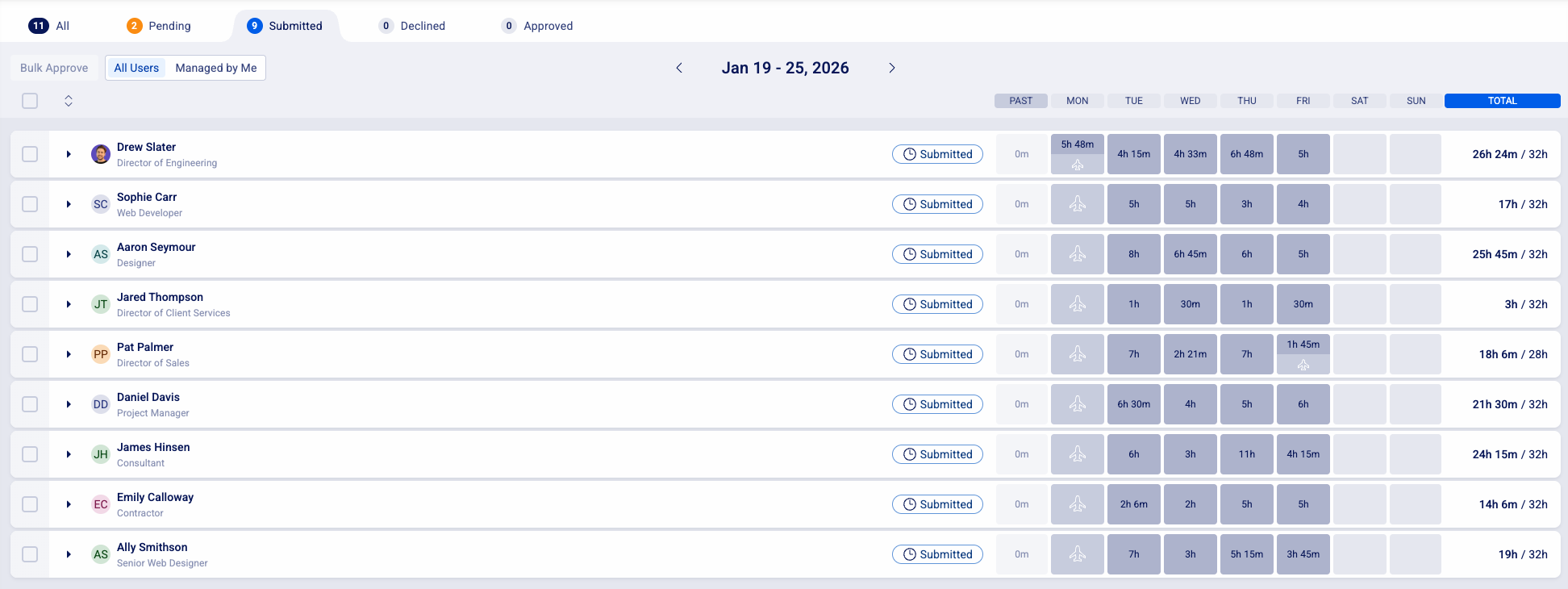
The Timesheet Approval page provides a centralised view for reviewing and actioning submitted timesheets. It is designed to help reviewers quickly understand who has submitted time, how that time compares to expectations, and whether it is ready for approval.
This page is available from the top navigation under Time → Timesheets when Timesheet Approvals are enabled.
Page Overview
The Timesheet Approvals page lists weekly timesheets across users and includes the following key information:
-
Timesheet status (Grouped by Pending, Submitted, Approved, Declined or All timesheets)
- The weekly period displayed
-
User name and position
-
Logged hours compared to available hours
-
Indicators for leave
-
Access to historical timesheets
Filtering and Navigation
Reviewers can tailor the view to focus on relevant timesheets:
-
Filter by All Users or Managed by Me
-
Filter by timesheet status
-
Navigate between current and past weeks

Reviewing a Timesheet
To review a submitted timesheet:
-
Locate the submitted timesheet in the list.
-
Select the user or expand the row to view a weekly breakdown.
-
Review logged time across days, work objects, and leave entries.

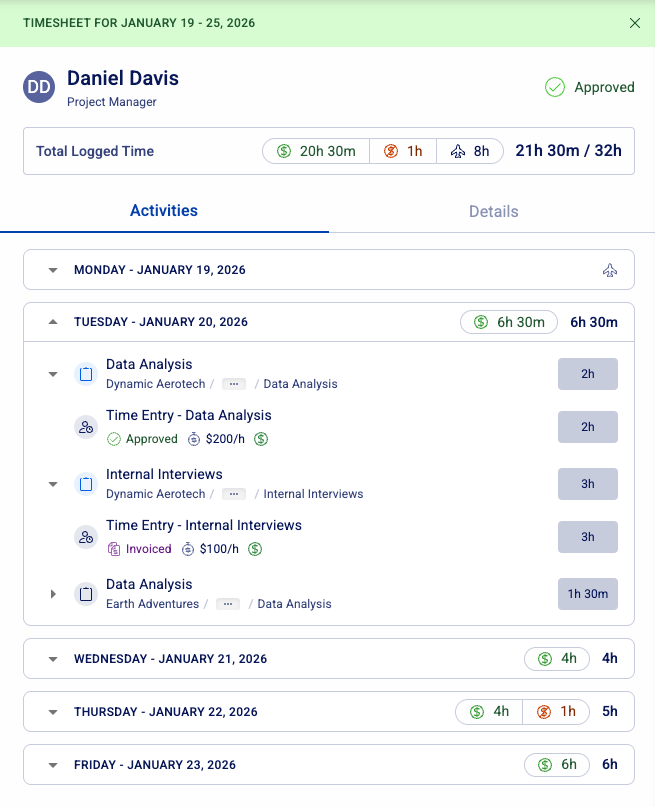
For deeper review, select a user row and click View Timesheet to open the user drawer, where you can:
-
Drill down into activities by work object and day (where there are activities from the past column the date shown here will be the logged for date, however the activity would have been created in the week shown in the header of the user drawer.
-
Review activity-level details
-
View a Details tab showing an audit history of the timesheet
For even further analysis, select a user row and click the external link item to open the users Weekly Timesheet for the week in question. 
Approving a Timesheet
If the timesheet is complete and accurate:
-
Select Approve on the timesheet.
Once approved:
-
The timesheet status changes to Approved
-
Associated activities remain locked
-
Approved time becomes available for invoicing (subject to permissions and invoicing rules)
- If Send Timesheet Email Notifications is set to On, an email notification will be sent to the user of the timesheet to notify them that a timesheet has been approved.

Declining a Timesheet
If changes are required:
-
Select Decline on the timesheet.
When a timesheet is declined:
-
The status changes to Declined
- The Decline Drawer is presented where a reason can be provided to the submitting user.
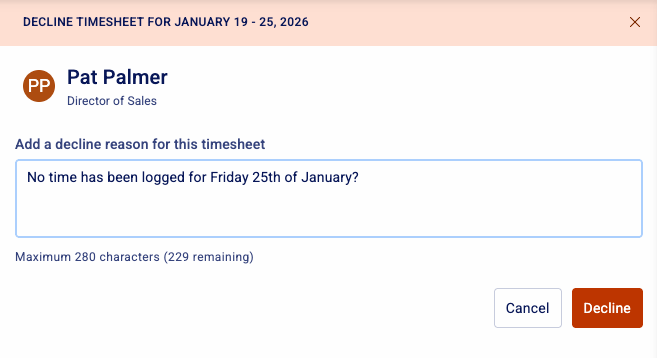
- This reason will be displayed on the users Weekly Timesheet

-
The timesheet is returned to the user for updates
-
Activities may become editable again, depending on their state
- If Send Timesheet Email Notifications is set to On, an email notification will be sent to the user to notify them that a timesheet has been declined along with the reason if provided.
Decline individual activities within a timesheet
Once a timesheet has been submitted, approvers can review the full week as usual and choose to approve or decline the entire timesheet.
In addition, individual activities within a timesheet can now be declined if specific entries require correction, without declining the full week.
How to Decline an Individual Activity
-
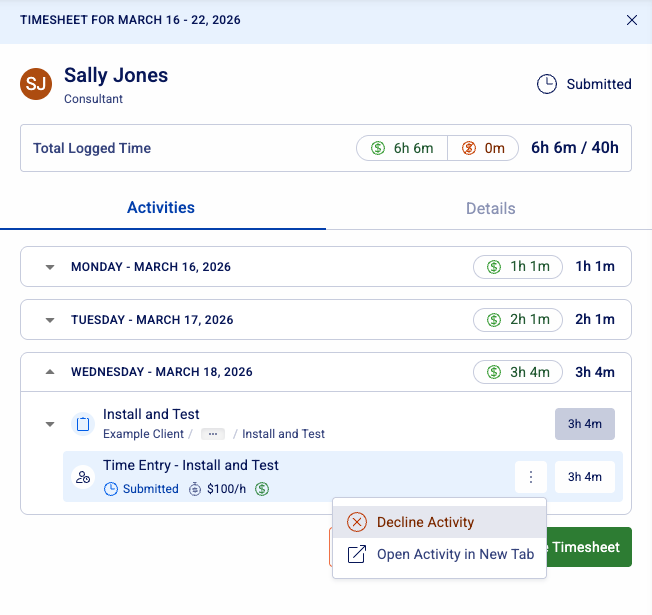
From the Timesheet Approvals page, locate the relevant timesheet and click View Timesheet to open the User Drawer
-
Navigate to the relevant day, then drill down to the specific activity
-
Click the kebab menu (⋮) next to the activity
-
Select Decline Activity
-
(Optional) Enter a reason for the decline
-
Click Decline to confirm, or Cancel to return to the User Drawer
Once declined:
-
The activity status updates to Declined within the User Drawer
-
The user who submitted the timesheet will receive a notification
-
Their Weekly Timesheet will update to reflect the declined activity
For how users can review and address declined activities, see the next section "Address Individual Activity Declines from the Weekly Timesheet"
Approvers can continue to decline additional activities within the same timesheet as needed.
Visual Indicators in the Timesheet Approvals Page

-
Cells containing declined activities are highlighted in red
-
The timesheet remains in the Submitted tab while individual activities are declined
-
As users correct and re-submit activities, the red indicators are removed
This allows approvers to quickly identify which parts of a timesheet still require review.
Important Notes
-
Approving or declining the entire timesheet at any time will override individual activity states
-
The timesheet will move to the selected status (Approved or Declined) regardless of any previously declined activities
Address individual activity declines from the Weekly Timesheet
If an approver declines one or more activities within your submitted timesheet, you will be notified and prompted to review your entries.
What You’ll See
-
You will receive a notification informing you that activities have been declined
-
Your Weekly Timesheet will display a message:
“[Approver Name] individually declined some activities within your timesheet. Please review and re-submit your timesheet.”
-
Cells containing declined activities will be highlighted in red, indicating which entries require attention

How to Review and Update Declined Activities
-
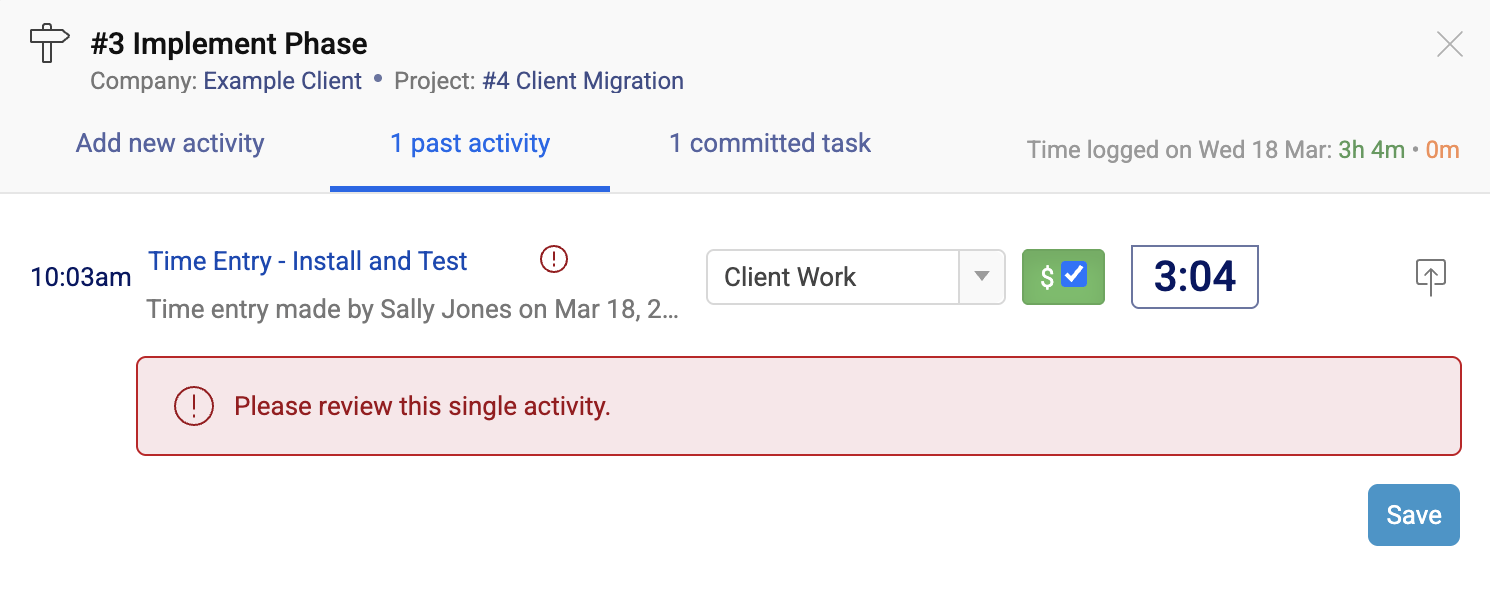
Click the relevant activity header to open the activity module
-
Review the decline reason provided by the approver
-
Make the required updates:
Adjust time or billable status directly within the module, or
Click the activity title to open the full View Activity page for additional edits
Re-Submitting Your Timesheet
Once all required updates have been made, click Re-submit Timesheet from the top of the Weekly Timesheet page
This will send the updated timesheet back to the approver for review.
Bulk Approval
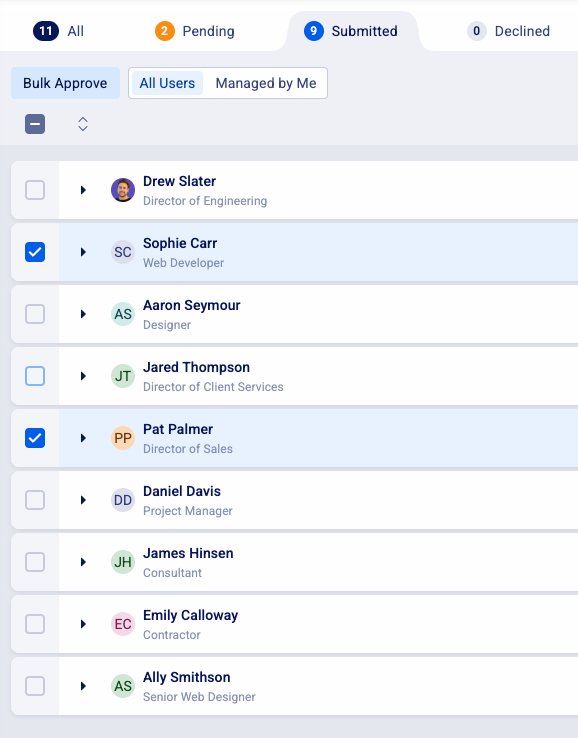
For teams with multiple timesheets ready for approval, the page supports bulk approval. Reviewers can select multiple submitted timesheets and approve them in a single action.
To bulk approve submitted timesheets:
-
Locate the submitted timesheet in the list
-
Using the checkboxes against each applicable user select each row you wish to bulk approve
-
Once your selection is made click Bulk Approve
-
A confirmation will appear, click Yes, Approve to proceed or No, Cancel to return to the overview screen.
Understand How Approval States Affect Activities, Editing, and Locking Behavior (including interactions with closed periods)
Timesheet Approvals introduce activity locking based on the approval state of a timesheet. This ensures time cannot be changed once it has entered review, approval, or invoicing workflows, while still allowing appropriate edits when changes are required.
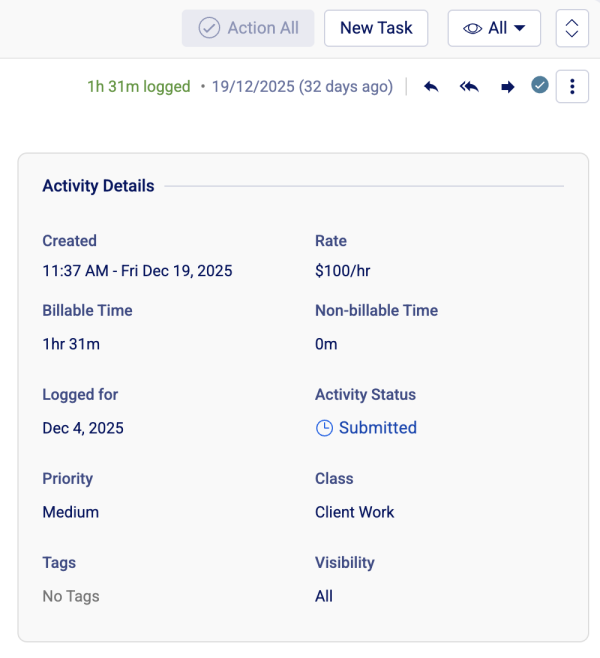
Activity Approval States
Each activity associated with a weekly timesheet will display one of the following statuses:
-
Pending – The timesheet/activity has not yet been submitted
-
Submitted – The timesheet/activity has been submitted for review
-
Approved – The timesheet/activity has been approved
-
Declined – The timesheet/activity has been declined
-
Invoiced – The activity has been invoiced
When Activities Are Editable
Activities are editable when:
-
The associated timesheet/activity is in a Pending state
-
The associated timesheet/activity is Declined, and the activity is not invoiced
In these states, users (where permitted) can:
-
Edit time and details
-
Delete activities
-
Relocate activities between work objects
When Activities Are Locked
Activities become locked when their associated timesheet is:
-
Submitted
-
Approved
-
Invoiced
When locked, activities cannot be:
-
Edited
-
Deleted
-
Relocated to another work object
This locking behavior applies consistently across:
-
View Activity pages
-
Weekly and Daily Timesheets
-
Rate-card–affected activities
What Happens When a Timesheet Is Declined
When a timesheet is declined:
-
The timesheet status changes to Declined
-
Activities generally become editable again
-
Users can make changes and re-submit the timesheet
This allows reviewers to request corrections without losing the original audit trail.
Interaction with Closed Periods
Prior to enabling Timesheet Approvals, closing a period provides an additional layer of protection for time logged against retainers, preventing any further edits to activities within that period.
When Timesheet Approvals are enabled, this behavior changes
Timesheet Approval rules take precedence over closed period logic, meaning approval state and not period state determines whether an activity can be edited.
Specifically:
-
Activities against a closed period can still be edited if the associated activity or timesheet is in a Pending or Declined state
-
Activities associated with Submitted, Approved, or Invoiced timesheets remain locked, regardless of whether the period is open or closed
This ensures a consistent approval workflow, allowing users to make required corrections when a timesheet is declined, even if the activity falls within a closed period.
For users familiar with period-based locking, it’s important to note that once Timesheet Approvals are enabled, the previous closed period behavior no longer applies. Approval state becomes the primary mechanism for controlling when activities can be edited.
Invoiced Activities
Once an activity is invoiced:
-
The activity status updates to Invoiced
-
The activity becomes permanently locked
-
The linked invoice name, link, and raised date are visible
This ensures a clear audit trail between approved time and invoicing.
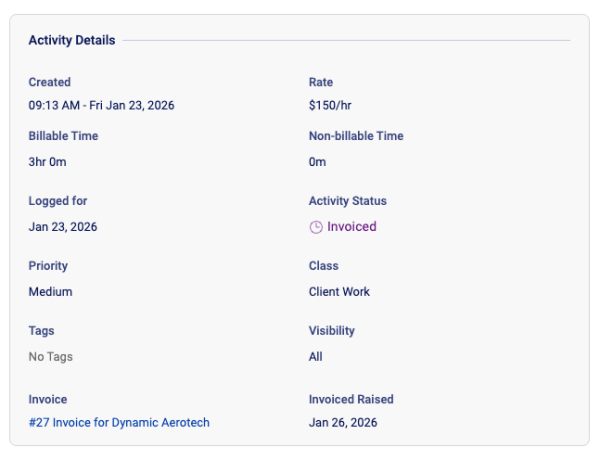
If an invoice is deleted the associated activity will also be updated to remove the linked invoice and invoiced raised date, and the status of the activity will update to Approved.
See how Timesheet Approvals align with existing object approvals and invoicing
Timesheet Approvals are designed to work alongside existing invoicing workflows, ensuring a consistent and reliable path from time entry through to billing. For further details regarding each object approval tool please refer to the following guides:
Project Approval Tool
Ticket Approval Tool
Retainer Approval Tool
Relationship to Object Approvals
The existing Object Approval tool remains available when Timesheet Approvals are enabled, but with some changes.
When Timesheet Approvals are enabled:
-
The Object Approval tool is no longer used to approve time or for invoicing
- Activities approved via the Timesheet Approval process will not move to the approved section of the object approval tool
-
The Object Approval tool can still be used to:
-
Bulk edit activities
-
Edit individual time entries
-
These actions apply only to activities that are Pending or Declined. Activities that are Submitted, Approved, or Invoiced remain locked.
This ensures that approval decisions are centralised in the weekly timesheet workflow, while preserving existing tools for operational edits where appropriate.
In-Flight Approvals
When Timesheet Approvals are enabled, it’s important to understand how previously approved activities are handled, particularly if approvals have already occurred using the Object Approval tool.
Activities Approved in Previous Weeks
Activities that were approved in weeks prior to enabling Timesheet Approvals:
-
Remain grouped as approved via the Object Approval tool
-
Do not carry a Timesheet Approval status
-
Are unaffected by the new workflow
These activities are treated as historically approved and will not be available for re-submission or re-approval. It’s recommended that this time is either already invoiced or invoiced using the All work status filter.
Activities Approved in the Current Week
Activities that were approved via Object Approvals earlier in the current week, before Timesheet Approvals is enabled, are handled differently.
Once Timesheet Approvals is turned on:
-
These activities transition to a Pending approval state
-
They continue to appear grouped as approved for reference purposes
-
They are automatically included in the newly created weekly timesheet for that week
-
They must be submitted and approved using the Timesheet Approvals workflow
This ensures consistency, so all time within the same week follows a single approval process before invoicing.
Example
A project manager approves time logged on Monday and Tuesday using the Object Approval tool. On Wednesday, Timesheet Approvals is enabled.
-
Time approved in previous weeks remains approved and does not carry a Timesheet Approval status or associated Timesheet ID
-
Time approved earlier in the current week is included in the current weekly timesheet
-
The weekly timesheet must now be submitted and approved before that time can be invoiced
This approach avoids mixing approval methods within the same week and ensures a clear, auditable approval path moving forward.
Invoicing Alignment
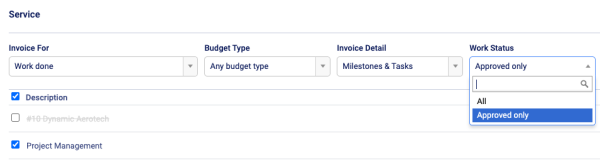
Timesheet Approvals can be used to control which activities are available for invoicing.
When invoicing work done:
-
The Approved only filter in both single and bulk invoicing includes time approved via Timesheet Approvals
-
Time that has not been approved via a weekly timesheet is excluded when this filter is applied
This ensures that only reviewed and approved time progresses to billing.
Invoiced Activity Visibility
Once an activity is invoiced:
-
The activity status updates to Invoiced
-
The activity becomes locked and cannot be edited
-
The linked invoice name, invoice link, and raised date are displayed on the activity
This provides a clear audit trail from approved time through to invoicing.
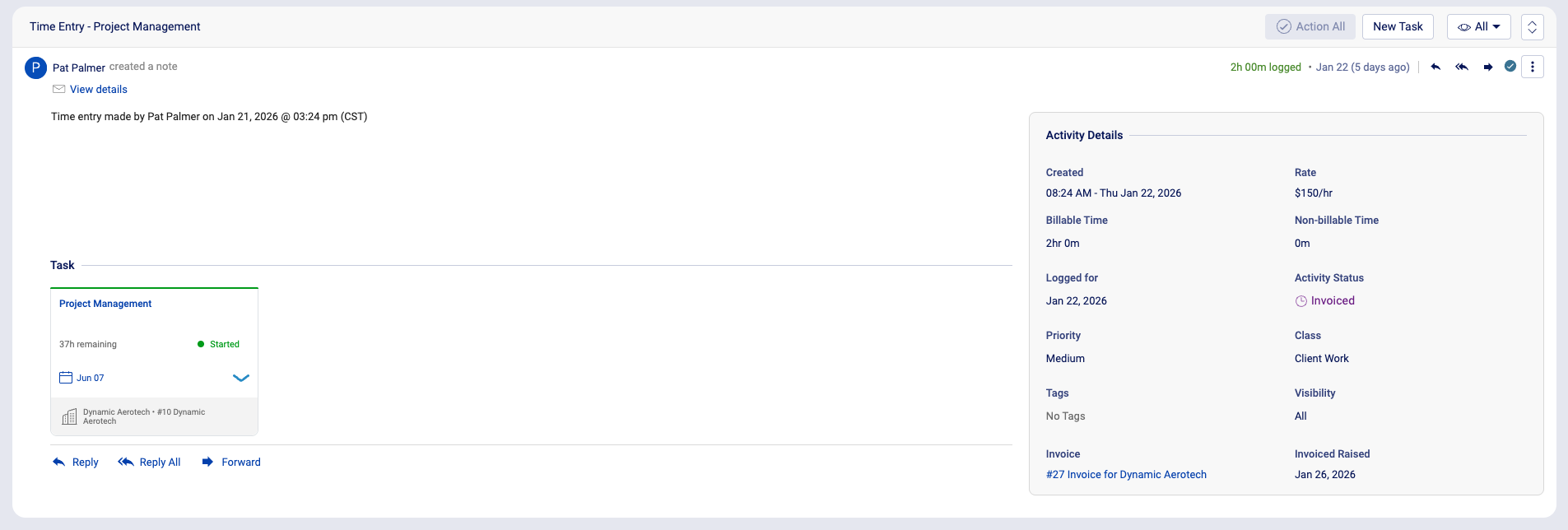
If an invoice is deleted the associated activity will also be updated to remove the linked invoice and invoiced raised date, and the status of the activity will update to Approved.